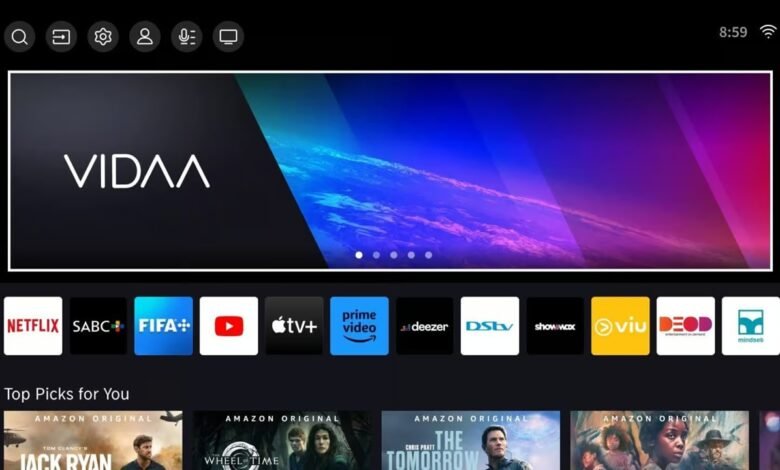

Nobody likes ads, especially when you’ve already paid good money for the hardware. But lately, Hisense TV owners have been greeted by a rather unpleasant surprise: full-screen, unskippable ads playing the moment they turn on their sets or switch inputs.
According to recent reports, Hisense has been injecting ads directly into the viewing experience before users can even get to their gaming consoles or preferred streaming apps. While the company has stated that this aggressive ad rollout was simply a “test,” the move has left a sour taste in the mouths of many consumers.
The backlash has been so severe that some users are refusing to connect their Hisense TVs to the internet altogether, opting to keep the TV offline and rely purely on external streaming boxes like the Chromecast with Google TV or Apple TV 4K.
Fortunately, you don’t have to completely lobotomize your smart TV to get rid of the clutter. We’ve put together a quick guide on how to block these intrusive ads from taking over your Hisense TV running Vidaa OS.
How to block ads on your Hisense TV
The most effective way to kill these ads at the network level is by changing your TV’s DNS settings to route traffic through AdGuard. AdGuard maintains a public DNS server that automatically filters out advertising servers, stopping the ads from ever reaching your screen.
Here is how to set it up:
- On your Hisense TV, navigate to Settings.
- Go to Network Connection > Network Settings.
- Scroll down to Advanced Settings and select IP Settings.
- Change your DNS mode to manual and enter the following AdGuard public DNS server addresses in the two DNS fields:
- Primary DNS:
94.140.14.14 - Secondary DNS:
94.140.15.15
- Primary DNS:
- Save your network settings.
Once your DNS is updated, your TV will stop downloading new ads. However, you still need to delete the ads that the TV has already downloaded and saved locally. To do this, you need to reset your advertising ID and clear the cache:
- Go to Settings > System.
- Navigate to Application settings.
- Select Clear cache.
This will wipe any lingering, pre-loaded advertisements from your TV’s memory.
Alternative solutions
Contact Hisense Support: It might sound incredibly old-fashioned, but simply complaining works. Several users who reached out directly to Hisense customer support to complain about the unskippable ads reported that the company actually disabled the ads for their specific devices. If you have a few minutes to spare, sending an email or hopping on a support chat is worth a shot.
The “Dumb TV” approach: If you want to be absolutely certain you never see a Vidaa OS ad again and you happen to own a dedicated streaming dongle or gaming console, you can simply disconnect your Hisense TV from your Wi-Fi network. By keeping the TV offline, it becomes a traditional “dumb” display, completely incapable of fetching new advertisements.
Have you noticed unskippable ads on your Hisense TV recently? Let us know in the comments below if the AdGuard DNS trick worked for you.