
Insights At a Glance:
- Open the My Airtel app, choose Buy Airtime or Buy Bundles.
- Under payment options, enter your Safaricom number to pay via M-PESA.
- Enter your M-PESA PIN, confirm, and receive instant airtime or bundles.
We’ve all been there—your Airtel line is running low on airtime, or your bundles have hit rock bottom just as your favorite YouTube video hits the climax. Panic mode on. But wait—you have money in your M-PESA account. Great! The next thought: “Can I use my M-PESA to top up my Airtel line without jumping through a dozen hoops?”
Well, the answer is yes, you absolutely can! And even better, you can do it directly from the My Airtel app.
Yes, yes—most of the guides online will send you to the M-PESA or the MySafaricom app. But that’s not what this is. This is the only guide you’ll need to buy Airtel airtime or bundles from your M-PESA account using the My Airtel app itself.
Let’s break it down:

Step-by-Step: Buying Airtel Airtime or Bundles from M-PESA on the My Airtel App
Step 1: Fire Up the My Airtel App
Open the My Airtel app on your phone. If you haven’t already installed it, head over to the Play Store or App Store and grab it.
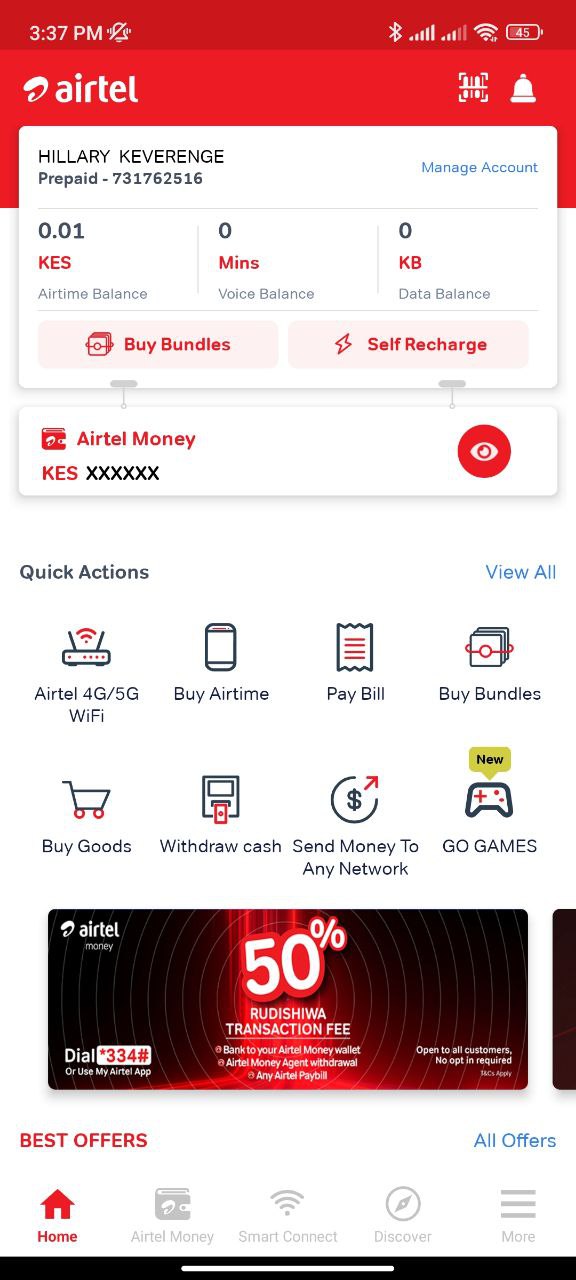
Once you’re logged in, it’ll recognize your Airtel line and show you your current balance.
Step 2: Choose Your Path—Airtime or Bundles
On the home screen, tap either Buy Airtime or Buy Bundles—whichever you’re after. Want to call bae all night? Airtime. Need to binge Netflix on the go? Bundles.
Step 3: Select the Recipient Number
This one’s smart—your own number will autofill here. If you’re topping up for yourself, just smile and tap Next.
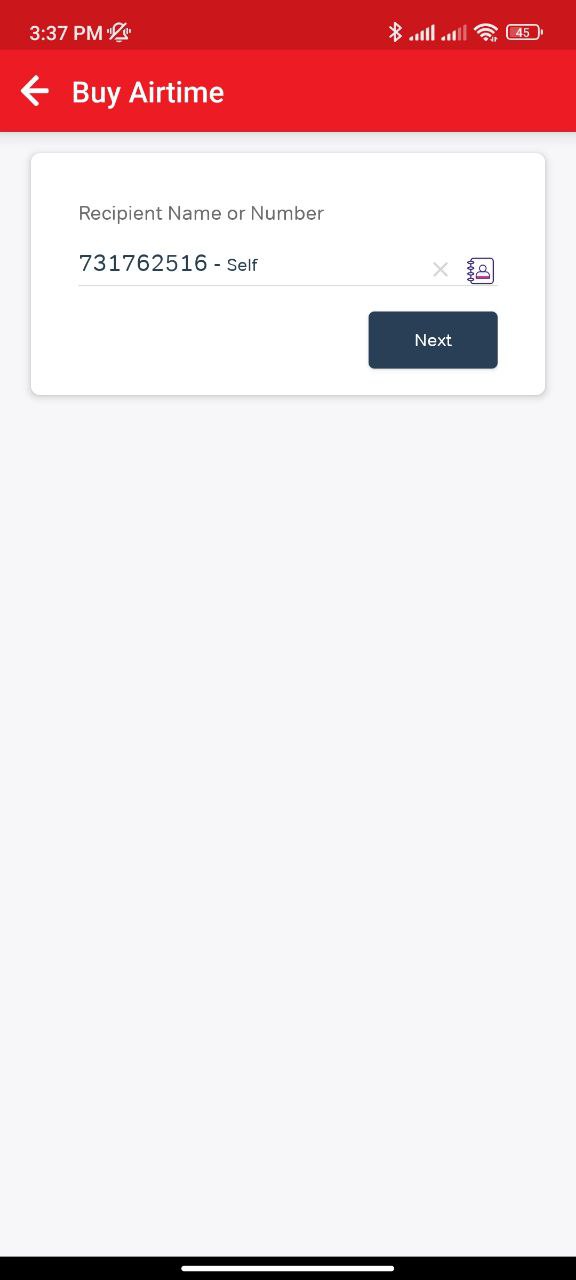
If you’re the generous kind (bless your heart) and buying for someone else, type in their number manually—or better yet, pick it straight from your contacts list. Then tap Next after confirming it’s the right number (triple check… trust us).
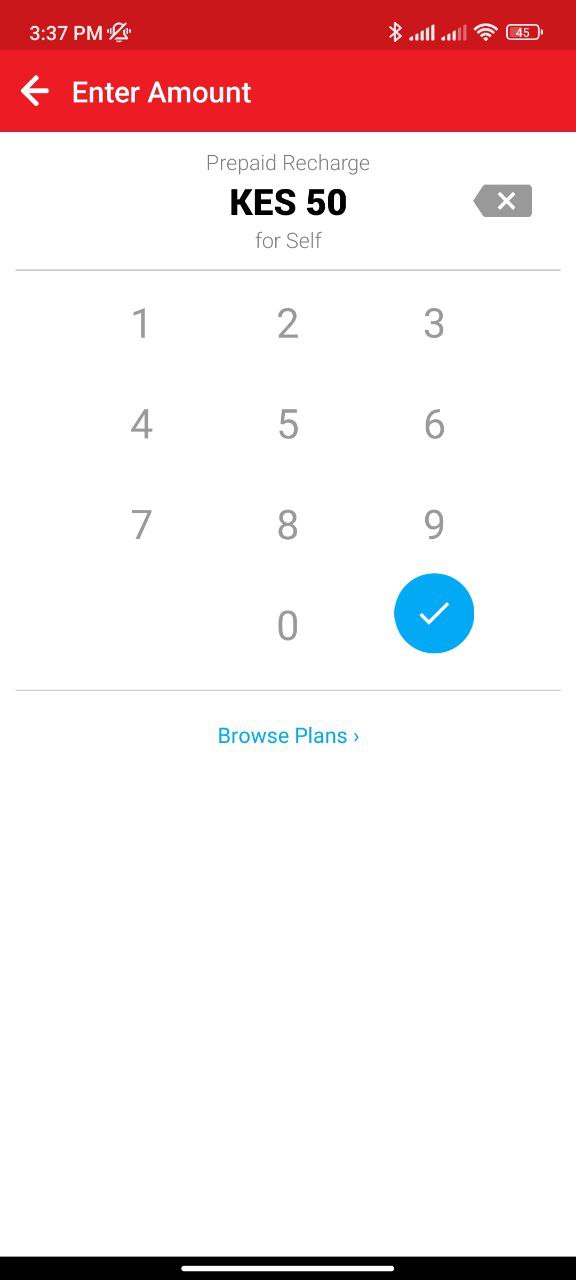
Step 4: Enter the Amount
Now input how much airtime or data you want to buy. No minimums, no drama—just type in the amount and move on.
Step 5: Choose M-PESA as Your Payment Method
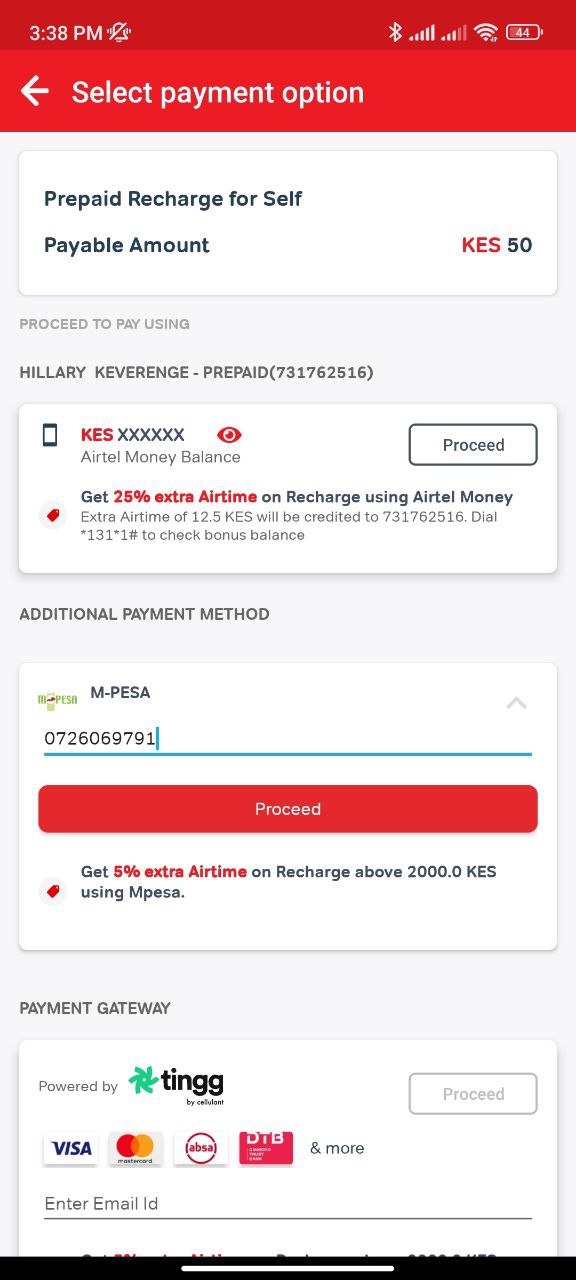
Here’s the magic bit. On the Select Payment Option screen, look for “Additional Payment Method”—yes, it’s tucked there, like a secret passage in a video game.
Tap the dropdown arrow, enter your Safaricom number (the one linked to your M-PESA), then tap Proceed.
Step 6: Approve the Payment
You’ll get a pop-up prompt to enter your M-PESA PIN. Punch it in (discreetly—no shoulder peeking!), then tap OK.
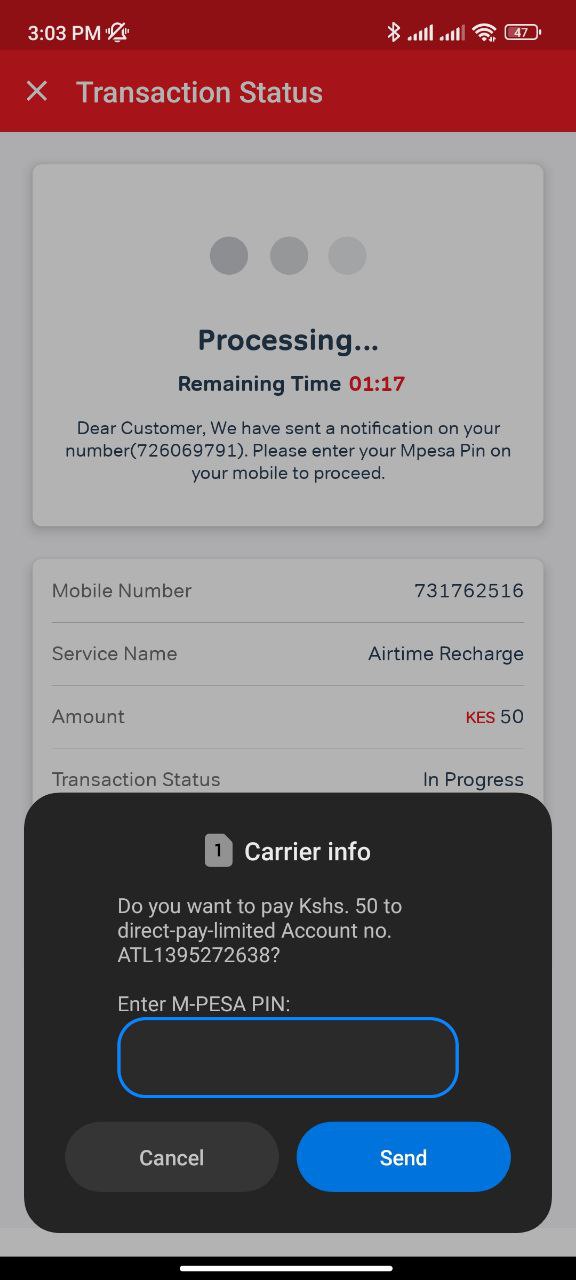
Boom. Transaction in progress.
Step 7: Confirmation Messages Roll In
Like magic, you’ll get two messages—one from M-PESA confirming the payment, and another from Airtel confirming that the airtime or bundle has landed in your account.
And That’s It!
No need to jump between apps, memorize Paybill numbers, or use USSD codes from the stone age. Just My Airtel app + your M-PESA line = instant airtime or bundles.
Next time you’re low on airtime but swimming in M-PESA funds, don’t panic. Just remember: My Airtel app’s got your back.
Meanwhile, Airtel has recently zero-rated the My Airtel app, allowing for usage without data bundles. You can read more about it in this article.






Join the discussion