

Insights At a Glance:
- The My Airtel app has activated its long-awaited “Home Wi-Fi” tab, replacing “Coming Soon” with a “Scan QR to Activate Device” option — though it was quickly rolled back.
- While the QR scan feature failed to work, manual onboarding using the router’s alternate and/or HBB number worked perfectly.
- After onboarding, users can manage subscriptions, buy bundles, view data balance, and access help.
If you’ve been keeping an eye on the My Airtel app like I have, you probably noticed a quiet but important shift recently and then, just as quietly, it vanished again.
Back in May, I published an article breaking down a new “Smart Connect” section in the app. At the time, it was labeled “Coming Soon”, with little detail on when exactly this mysterious feature would go live. The feature promised users the ability to onboard and manage Airtel’s Smart Connect devices, including the 5G router, right from the app.
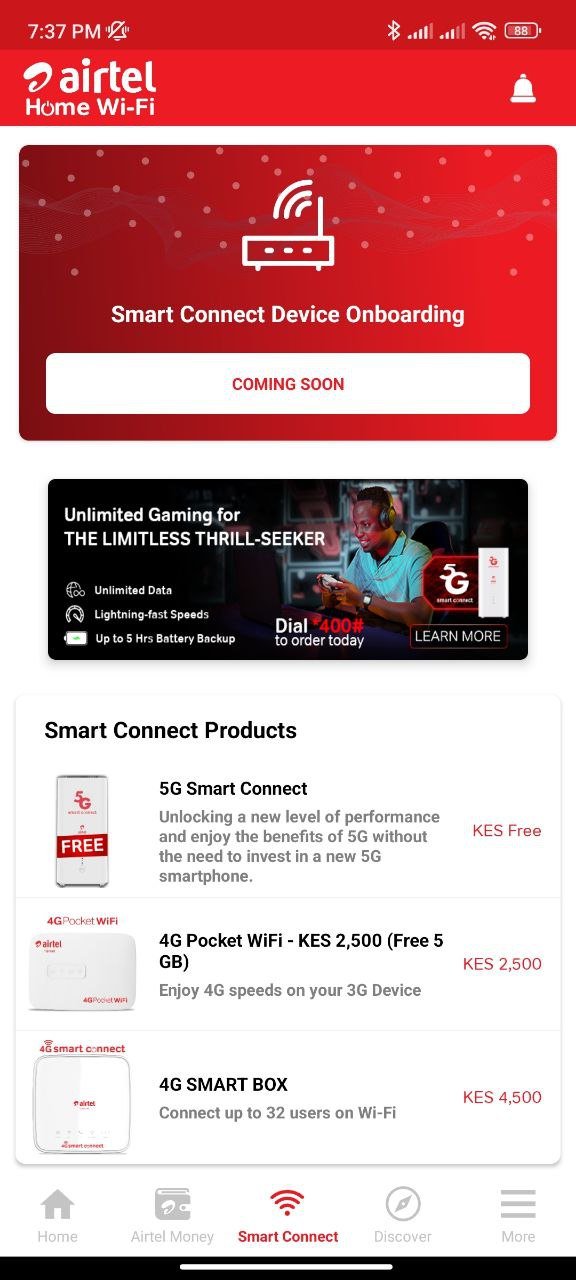
Fast-forward to today, and while casually snooping around the app (yes, that’s my job), I noticed that the “Smart Connect” tab had been renamed “Home Wi-Fi” and more excitingly, the old “Coming Soon” notice had been replaced by a very real, very clickable “Scan QR to Activate Device” button. Naturally, I pounced.

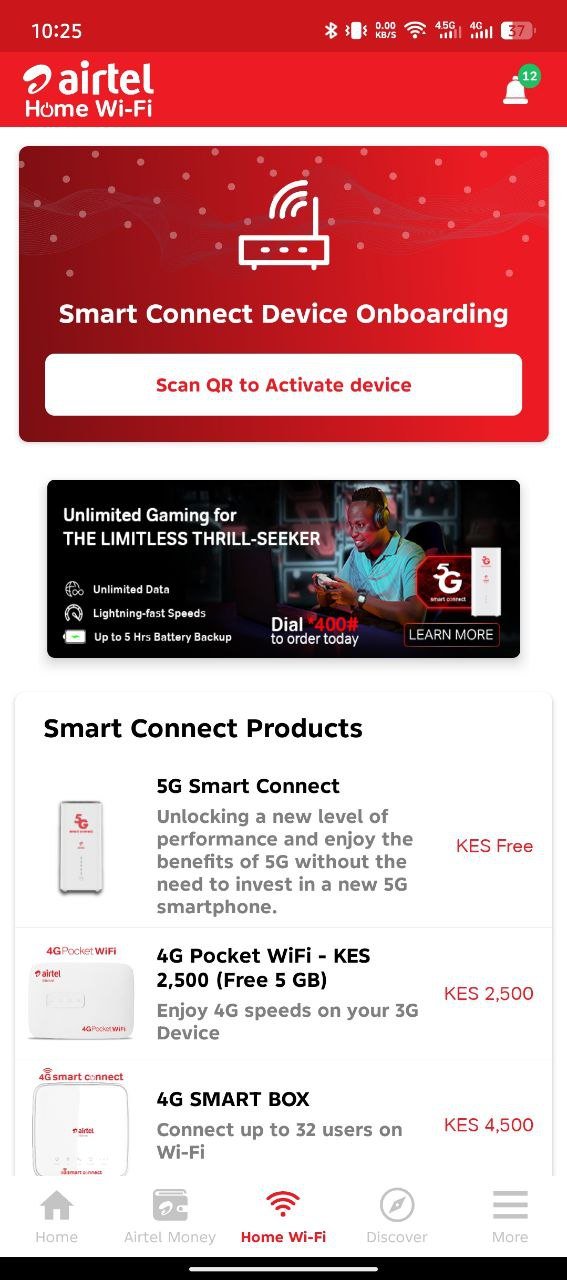
But, of course, tech rollouts rarely go as planned.
The QR Code That Led Me Nowhere
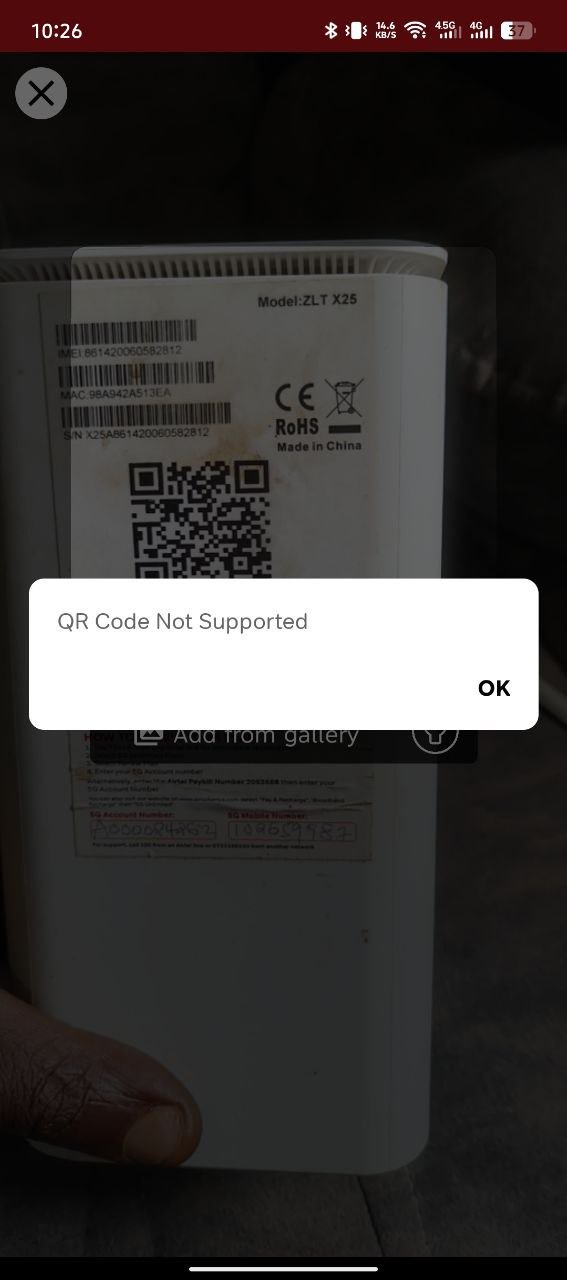
With curiosity fully piqued and expectations sky-high, I grabbed my Airtel 5G Smart Connect router and scanned the QR code as instructed. Only to be met with a letdown: “QR code not supported.”
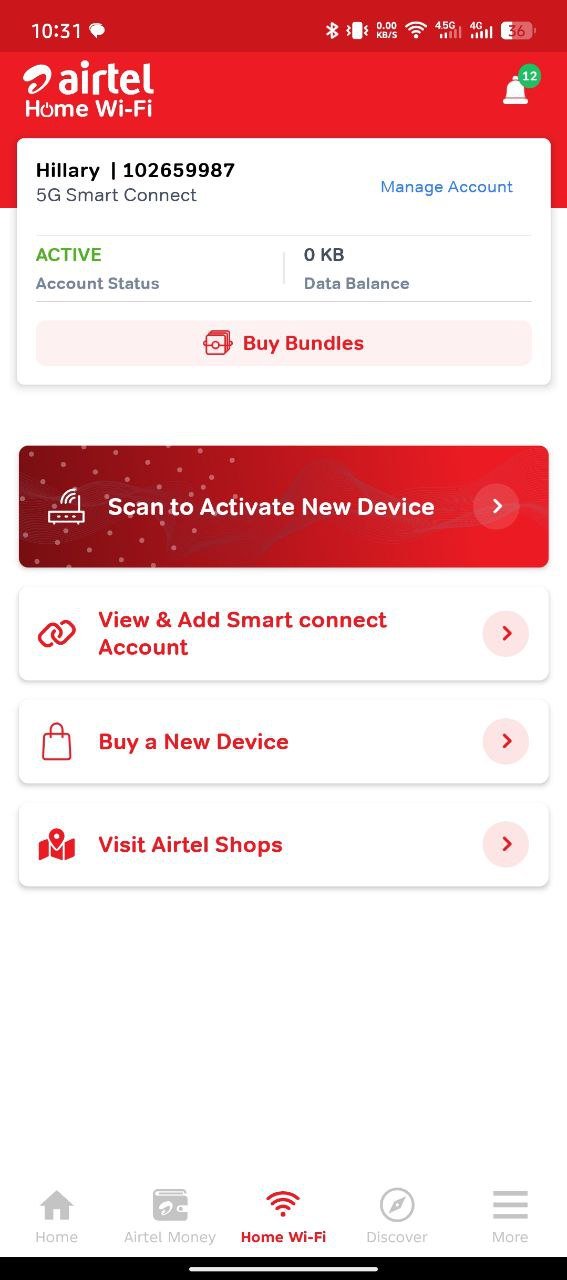
Undeterred, I scrolled further down the app and spotted an option to “View & Add Smart Connect Account.” This time, instead of relying on the elusive QR, I manually entered my 5G router’s mobile number, the alternate number (the Airtel number tied to the device for payments), and email address. An OTP was sent to the alternate number and boom, I completed the onboarding process.
My 5G router was officially onboarded into the app. I could now see the subscription status, manage the account, buy bundles, and even view data balance (which hilariously showed 0.0kb, but let’s ignore that for now).
Excited to capture the whole onboarding process for Techish readers, I removed the device to go through the process again and take notes. But when I returned to the app later…
“Coming Soon” Again? Wait, What?
To my surprise, the option to “Scan QR to Activate Device” had reverted to “Coming Soon” just like it was before. It felt like someone at Airtel had flipped a switch… backward. Coincidence or conspiracy? Hard to say. Especially since I’d just raised a question on X tagging Airtel Kenya about the unsupported QR code. They never replied. But I’m allowed to gaslight my own importance a little, right?
Despite the rollback, the option to manually add a device was still there. So I tried again by entering my alternate number (the Airtel phone number attached to the 5G router for payments). Unfortunately, the system told me the number was “already added” even though I no longer had access to the router’s control panel inside the Home Wi-Fi tab. Not one to give up easily, I went ahead and re-registered the device by following the new prompt: entered my 5G router’s HBB number, nickname, email, received an OTP and boom! “Congratulations! Your number has been successfully added.”
So yeah, Airtel might have pulled back the option to scan QR codes to add smart devices to the Airtel app, but the manual option is still very much at work.
What You Can Access Once Onboarded
Now, with the device fully back in the system, the “Home Wi-Fi” tab finally came alive again. Here’s what you get access to:
- Subscription Status & Data Balance (even if it’s showing 0kb like mine)
- Buy Bundles: This takes you to a full “Best Plans” page with all the available 5G Smart Connect offers including:
- Monthly 15Mbps & 40Mbps plans
- 5G Booster Pack (300GB for KES 1,000)
- 90-day and 180-day long-term plans recently added to the catalog
- Manage Account: Opens up four handy options:
- Data balance
- View & Add another account
- Transaction history
- Help and Support (with Airtel Kenya contact info and FAQs)
While we can’t say for certain what Airtel is up to behind the scenes, it feels very much like an A/B test or a soft rollout that got momentarily exposed to the public (aka me). The brief availability of the QR scan function, followed by its sudden removal, suggests they might still be ironing out the bugs. Or maybe they panicked when someone (me again) started tweeting about the broken QR functionality.
Regardless, the good news is: you can still onboard your Airtel Smart Connect devices or 5G router manually via HBB (router’s number) and alternate number right now. No QR code needed.
Airtel’s “Home Wi-Fi” tab still feels like a feature in progress, the bones are clearly there. With a few bugs squashed and QR support fully working, this could be a major convenience for Airtel users wanting a cleaner way to manage home internet. But until then, just know you can sidestep the “Coming Soon” label entirely by manually onboarding your router using the method I’ve detailed here. And if you’re feeling bold, go ahead and test it yourself.
You never know what part of the app might quietly come alive next.








Join the discussion