

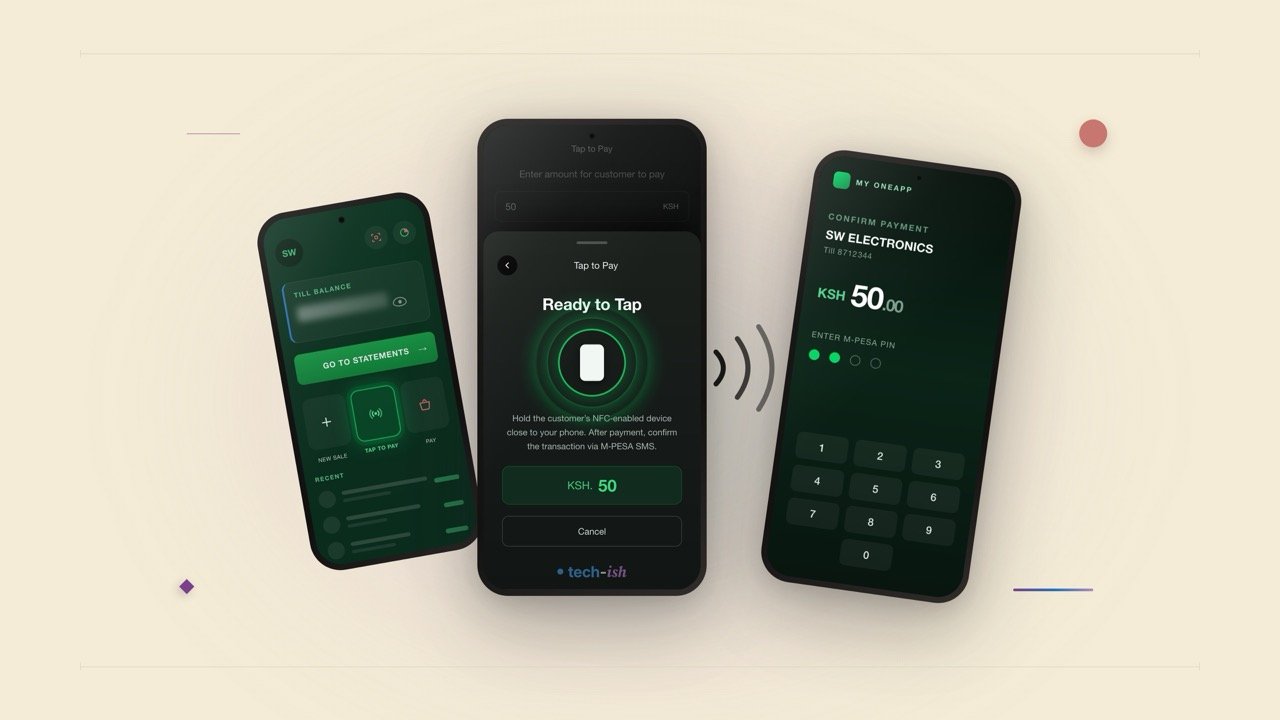
Safaricom has added a Tap to Pay button to the M-PESA Business App, the app that Lipa na M-PESA till owners have used since 2020 to track collections and move money out of a till. The button sits on the home screen alongside New Sale, Pay and Withdraw.
Tapping it opens a field where the merchant keys in the amount owed by a customer. A sheet then slides up headed “Ready to Tap”. The instruction on it tells the merchant to hold the customer’s NFC-enabled device close to their own phone. After payment, the merchant confirms it via the usual M-PESA SMS.
The merchant’s phone does everything. No card machine is involved.
The iOS release notes for M-PESA for Business version 3.6.2, published on 13 August 2026, list “tap to pay, mpesa to mpesa” among the changes. The Android version was last updated on 11 August 2026, though its Play Store notes do not name the feature. When Vodacom launched tap-to-pay on M-PESA in Tanzania in March 2026, it did so by turning the wallet into a tokenised Visa virtual card, so the tap runs over Visa’s network at any Visa terminal. Kenya’s version keeps the money on M-PESA rails from the customer’s wallet to the merchant’s till.

What Tap to Pay actually is
Safaricom published an FAQ page for M-PESA Tap to Pay on 11 August 2026. It describes the payment as one where a customer taps an NFC-enabled smartphone against an NFC-enabled device or chip, checks the transaction details on their own screen, and enters their M-PESA PIN to finish.
NFC stands for Near Field Communication. It is the short-range radio built into most modern smartphones that lets two devices swap a small packet of data when held a few centimetres apart. It is the same technology inside a contactless bank card.
By that FAQ, a customer needs four things:
- an active Safaricom line registered on M-PESA,
- a phone with NFC,
- the My OneApp app installed,
- and a merchant whose till has Tap to Pay enabled.
My OneApp is the merged M-PESA and MySafaricom app we walked through when it was unveiled at Decode 4.0.
The order of how a payment works is fixed. The cashier starts the payment. The customer taps, reads the merchant name and amount on their own screen, then enters their M-PESA PIN. Both sides get a confirmation message. If the tap fails, Safaricom’s FAQ says the merchant should fall back to the M-PESA prompt, a QR code, or reading out the till number.
Safaricom has dropped the PIN-free idea
When Peter Ndegwa first described Tap to Pay for Kenya in March, the pitch included customisable thresholds, so a small payment could go through on a tap alone and only larger ones would ask for a PIN. We reported that at the time in our piece on Tap to Pay coming to Kenya.
As shipped, the version does not work that way. Safaricom’s FAQ say that the customer still needs to enter their PIN. A tap saves the customer from typing a till number and an amount.
What is still unclear, and the iPhone question
Availability is the big one. How many merchants and customers have NFC enabled devices. How many are willing to try out the feature. These are essential questions that must be well thought.
There is also the question of NFC on iPhones. Ideally, with this implementation, Phones are supported. Because it’s a tap then an action happens. Then you enter your PIN.







Join the discussion