
If you’ve logged into your favourite social media app in the last few days, you’ve likely seen the wave of complaints from Kenyan (and beyond) football fans. The issue? Their Android and Google TVs are suddenly — and automatically — uninstalling popular live streaming apps like Cricfy.
One minute you are watching a Premier League match, and the next, the app is gone. It hasn’t just crashed; it has been completely scrubbed from the system.
While we at Techish Kenya do not advocate for the use of illegal streaming services, we understand the frustration of losing control over a device you own. Here is why Google is nuking these apps from your TV, and how you can stop it, if you are willing to accept the security risks involved.
The culprit is Google Play Protect
The reason your apps are vanishing is Google Play Protect. Think of it as Google’s built-in antivirus for Android. It is on by default on almost every Android device, including your TV.

Play Protect doesn’t just scan apps when you first install them; it periodically scans your device in the background. If it finds an app that it deems “harmful,” it takes action.
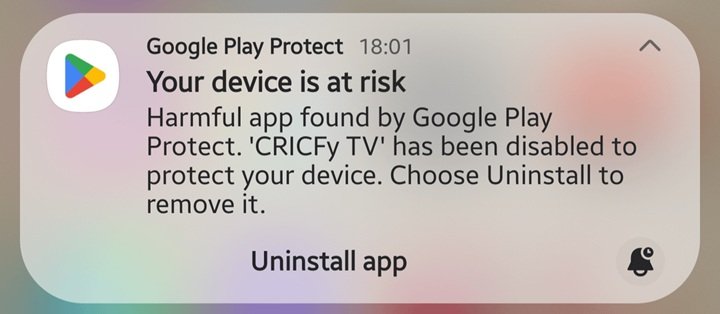
Usually, it warns you first. But for apps flagged as “high risk” — often those that bypass payment systems, violate developer policies, or are suspected of scraping user data (common in free streaming APKs) — Play Protect can automatically remove the app without your permission to protect the device.
In the case of Cricfy and similar “grey market” streaming apps, Google’s algorithms have likely flagged them for violating the Unwanted Software Policy or for potential malware risks associated with unverified external sources.
⚠️ Disclaimer: Read this before proceeding
Warning: The steps below disable a core security feature of your Android TV. Google Play Protect exists to stop malware, ransomware, and data theft.

By turning this off, you are removing the safety net that prevents malicious apps from stealing your Google account credentials or banking information. Proceed at your own risk. Do not hold Techish Kenya liable if your device is compromised.
How to stop Android TV / Google TV from deleting apps
If you are determined to keep these apps on your TV, you need to tell Google Play Protect to look the other way. The method varies slightly depending on whether you have a standard Android TV interface or the newer Google TV UI (like on the Chromecast or newer Sony/TCL TVs).
Method 1: The System Settings route
This is the most common method for many Android TV/Google TV devices.
- Navigate to your TV’s Settings.
- Go to Privacy (sometimes nested under Device Preferences).
- Select Security.
- Look for Scan apps with Play Protect and toggle it OFF.
- Note: Turning this off automatically disables the “Improve harmful app detection” setting as well.
Method 2: The Play Store route
If the settings above aren’t visible, you can disable Play Protect directly through the Play Store app on your TV.
- Open the Google Play Store on your TV.
- Navigate to your Profile Icon in the top right corner.
- Select Play Protect.
- Open Settings (the gear icon).
- Toggle Scan apps with Play Protect to OFF.
Once disabled, your TV will no longer scan for or automatically delete sideloaded APKs like Cricfy. You may need to reinstall the app one last time if it was already removed.
While the steps above work on Android phones too (Open Play Store > Profile > Play Protect > Settings > Off), we strongly advise against doing this on your primary smartphone.
Your phone contains your banking apps, M-PESA messages, emails, and private photos. Disabling security scanners to watch football exposes all that data to potential theft.
If you must use these apps on your TV, protect yourself by compartmentalizing your data. Don’t use your main Gmail address on your Android TV. Create a separate “burner” Google account specifically for your TV usage. This way, if a malicious app does manage to steal login tokens from the TV, your primary personal data remains safe.



Join the discussion