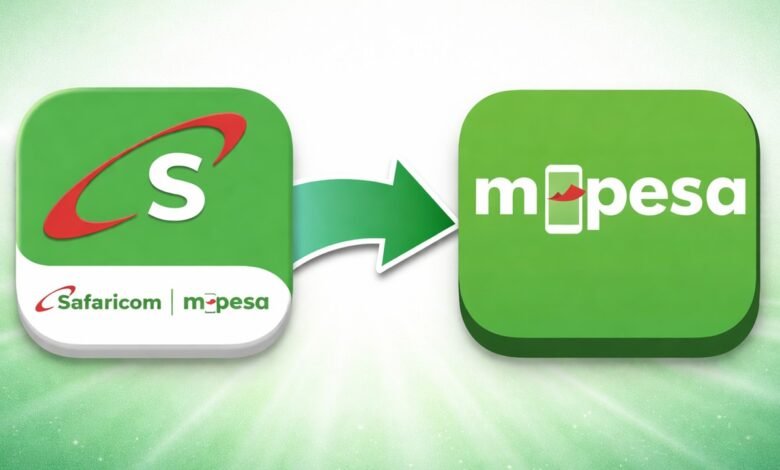
Safaricom’s new My OneApp is still causing enough friction that some users simply want out. If you updated from the old M-PESA app and now want to go back, Android still gives you a way to do that. The latest My OneApp release is version 5.1.1, while the most recent pre-merge M-PESA build available on APKMirror is version 3.5.9, which, unlike the new version, is listed for Android 6.0 and above.
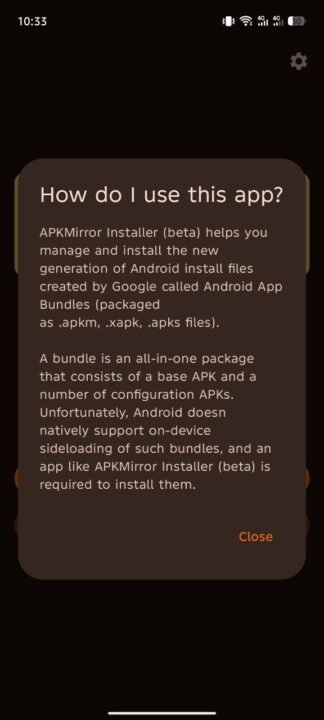
The catch is that this is no longer as simple as downloading one APK file and tapping install. Modern Android app distribution increasingly relies on split packages and app bundles, and Android does not natively handle every format the way users expect. That is where APKMirror Installer comes in. The helper app, available from the Google Play Store, supports .apkm, .xapk, .apks, and regular APK files, making it one of the easiest ways to install older Android app packages pulled from APKMirror.
I’ve gone through this process myself, and yes, it works. I was able to remove the new My OneApp from my Android phone, install the older M-PESA app again, sign back in, and get back to using the app as usual. So if you are frustrated with the new experience, this is currently the cleanest practical workaround on Android.
Step 1: Download the old M-PESA app
Start by downloading M-PESA version 3.5.9 (or older) from APKMirror. I encountered some issues trying to download the APK using my phone, so I went with my PC and transferred the file to my phone. So, if you encounter any issues when trying to download the old M-PESA app from APKMirror, I’ve created a Google Drive link to download the APK directly without going through the APKMirror hassles.
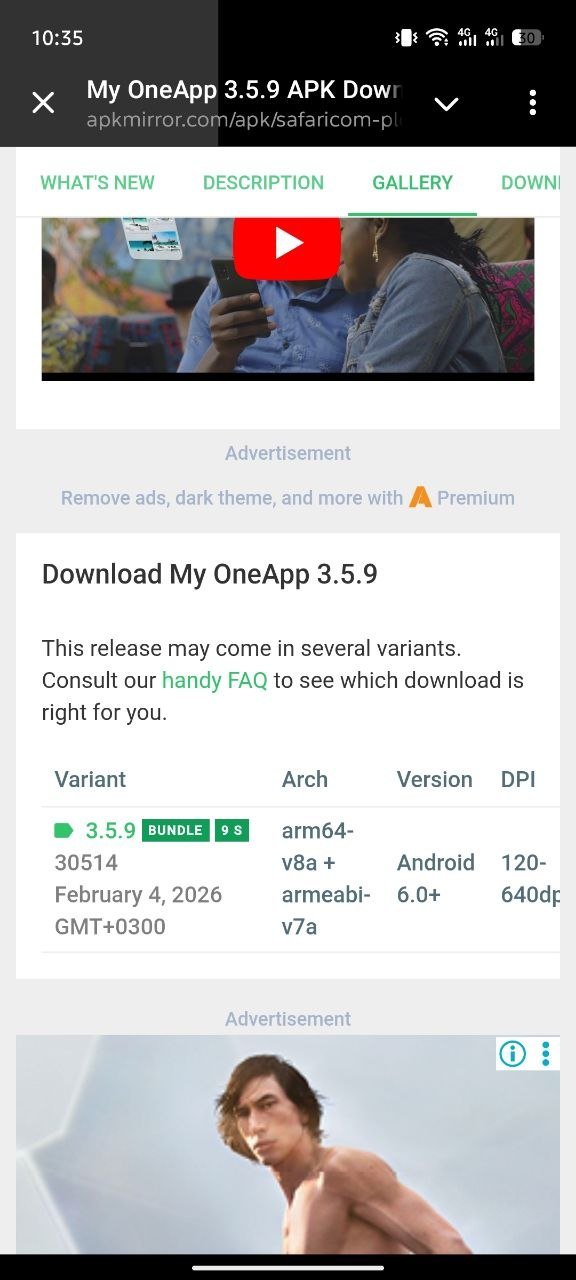
This is the latest older build before Safaricom’s full My OneApp shift, and it keeps the familiar M-PESA experience many users would rather stick with for now. Once you download the APK file, leave it at that and move to the next step.
Step 2: Install APKMirror Installer from the Play Store
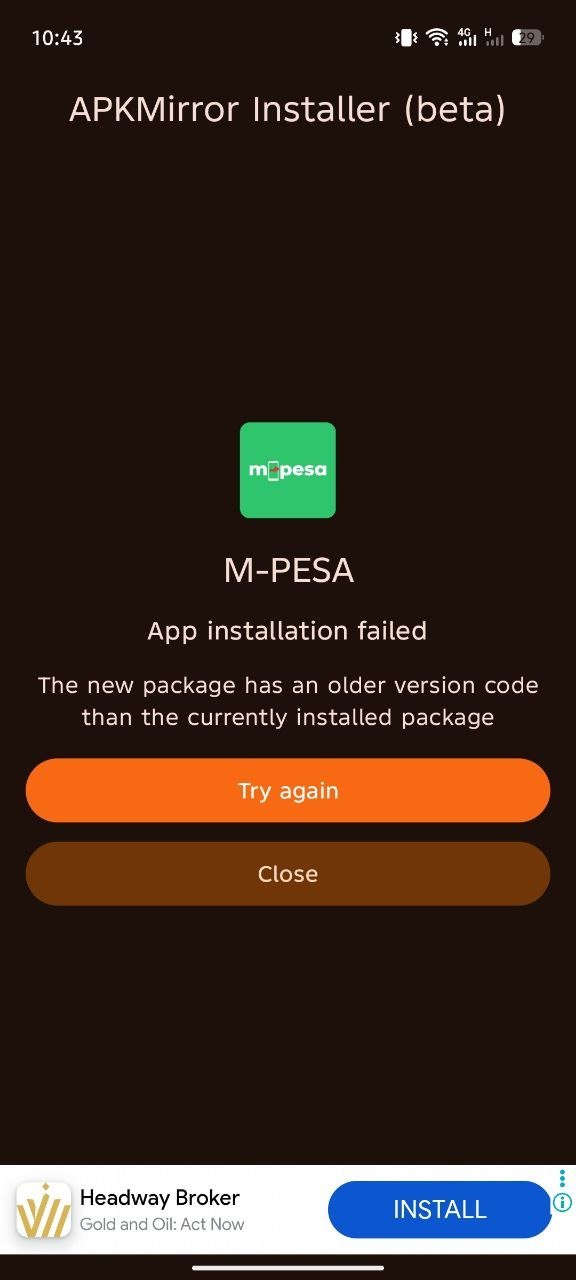
Next, install APKMirror Installer from Google Play. You will need this helper app because Android’s current app packaging system is not always friendly to manual installs, especially when bundles or split packages are involved. The APKMirror installer is designed specifically to handle those formats and can also explain why a sideload fails if something goes wrong.
Step 3: Uninstall the new My OneApp first
Before you try installing the old M-PESA build, uninstall the new My OneApp from your phone. In my testing, the old version would not install over the newer app, which is exactly what you would expect when trying to downgrade to an older package. Remove My OneApp completely first, then proceed with the installation of M-PESA APK version 3.5.9.
Step 4: Use APKMirror Installer to install M-PESA 3.5.9
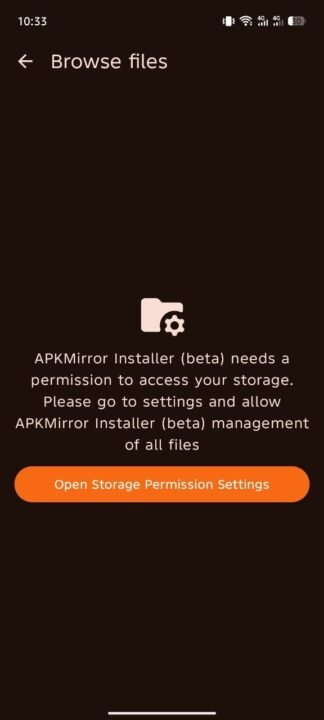
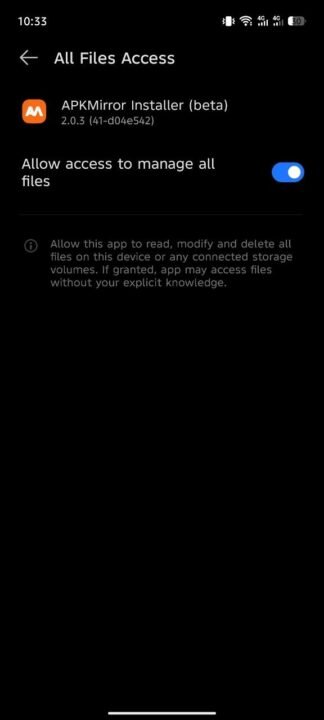
Open APKMirror Installer and give it the necessary permissions, browse to the M-PESA file you downloaded, and follow the on-screen prompts. Once installation is complete, open the app, sign in again, and continue using it normally. It is not elegant, because nothing involving manual Android package installs is elegant anymore, but it does the job.
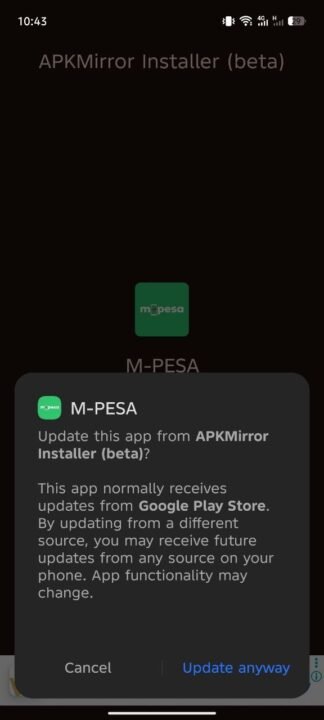
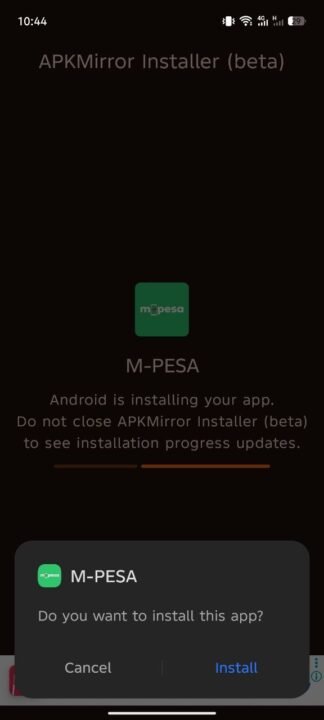
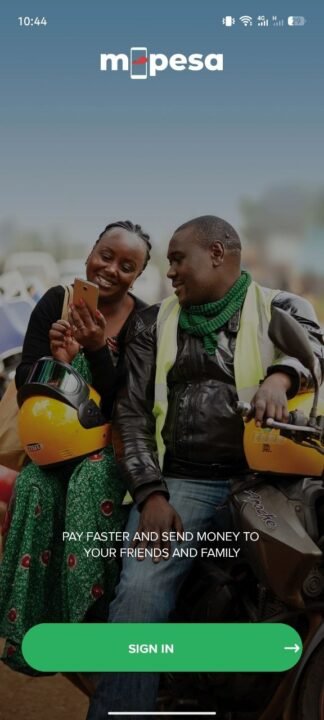
Step 5: Turn off auto-updates so Play Store doesn’t force My OneApp back
This part matters. If you do not disable automatic updates, Google Play can simply update the old M-PESA app back to My OneApp the next time it gets the chance. Google’s own Play support pages confirm that you can either disable auto-updates globally from Play Store > Profile picture > Settings > Network preferences > Auto-update apps > Don’t auto-update apps, or manage automatic updates on a per-app basis from that app’s Play Store page. Simply open the M-PESA app on the Play Store (it now reads as My OneApp), tap on the 3-dots menu in the top right corner, and uncheck the option for auto updates.
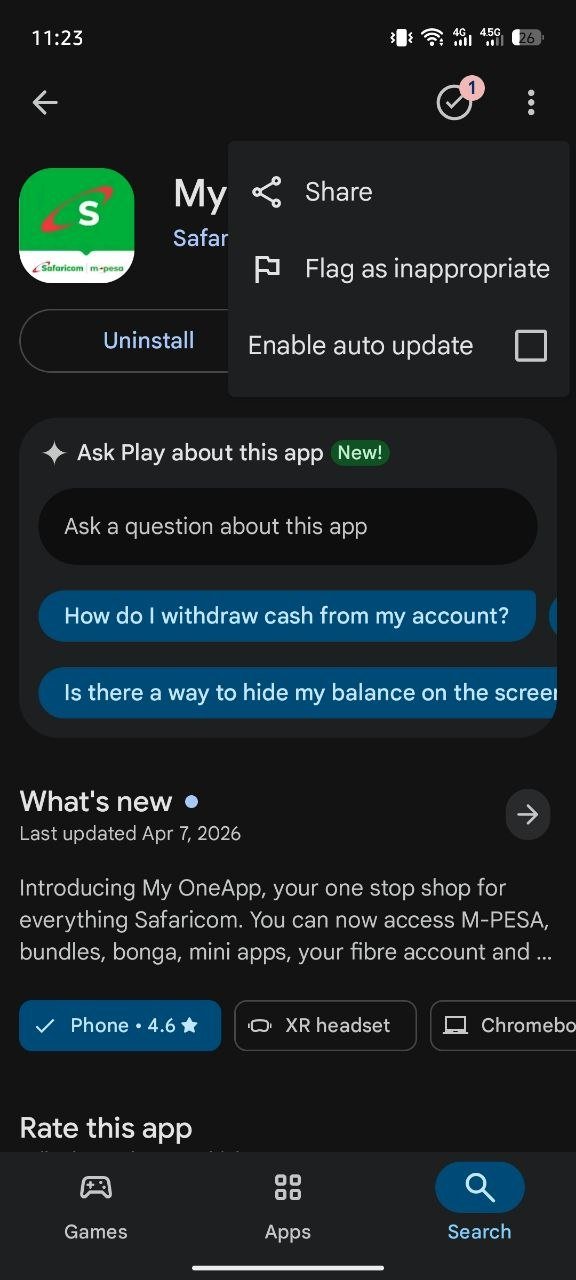
For most people, disabling auto-update just for this app is the smarter option, since it stops M-PESA from jumping back to My OneApp without freezing updates for everything else on the phone.
What about iPhone users?
This workaround is really an Android-only story. On iPhone, there is no similarly straightforward rollback path for ordinary users once an app has moved on. Apple lets you turn off automatic app updates, but it does not offer the kind of normal sideload-and-downgrade flow Android users can still piece together. Practically speaking, if you are still on the old M-PESA app on iPhone, your best defense is to switch off automatic app updates now and avoid being pushed to My OneApp before you are ready.
For now, that is the situation. If you are on Android and My OneApp is not working for you, rolling back to M-PESA app version 3.5.9 or older is still possible. Just uninstall the new app, download the older build, use APKMirror Installer to install the old version, and turn off auto-updates before Google Play sends you right back into the mess.