
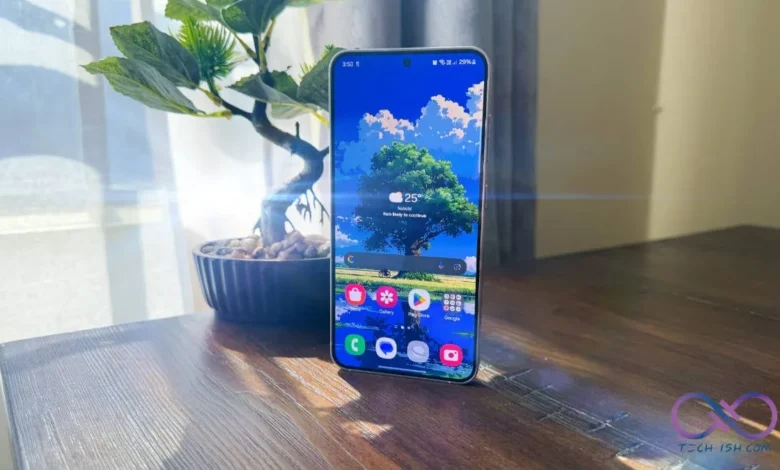
Samsung is currently rolling out the One UI 8.5 update, and while it brings a host of exciting features, it isn’t without its growing pains. Several Galaxy S23 and S24 owners are finding themselves trapped in a frustrating loop, stuck indefinitely on the Galaxy AI welcome screen.
I first learned about this bizarre glitch when a friend of the site reached out for help. His Galaxy S24 had successfully downloaded the One UI 8.5 update, but he couldn’t get past the onboarding page. Clicking “Next” simply caused a “One UI Home has stopped” error, looping him right back to the start. He even sent over a photo showing the exact freeze, which you can see below.
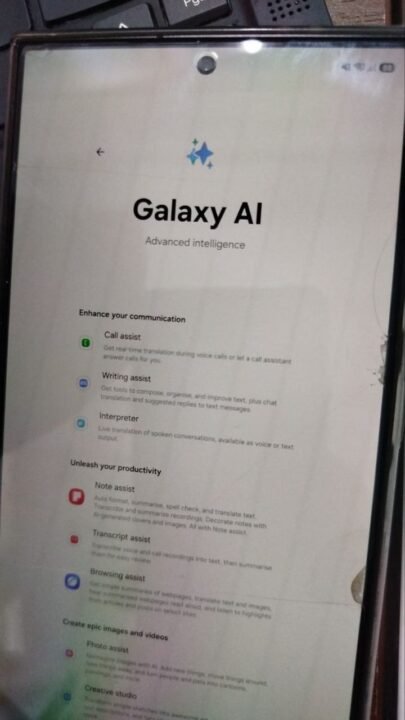
The culprit boils down to custom display settings. Specifically, if you previously tweaked your developer options to use a tablet-like “minimum width” or heavily adjusted your screen zoom, the new One UI 8.5 setup screen panics, crashes, and forces a loop.
Looking for a quick resolution, my friend took his Galaxy S24 straight to a Samsung Kenya repair center. The technicians correctly identified the root cause as the altered display settings, but their recommended fix was a complete factory reset, which he did. However, losing all your data for a simple UI conflict is far too drastic, especially when a much simpler workaround exists.

If your Samsung phone is freezing on the Galaxy AI screen after the One UI 8.5 update, don’t touch the reset button. After digging through community forums, I found a way to escape the loop without wiping your device.
Some of those affected found that you can bypass the broken attempt to setup Galaxy AI using voice commands to fix your display settings.
- Say “Ok Google” to trigger Google Assistant or Gemini.
- Command it to “Open screen zoom settings.”
- Move the screen zoom slider back to a standard mobile layout middle position. Do the same for your font size.
- Retry the start screen, and it should now proceed to your home screen smoothly.
So, before you let a minor display conflict wipe your primary device, try these steps first and you should get back to enjoying your One UI 8.5 experience asap!






I don’t have gemini activated, so this didn’t work for me. I have a screen light adjusting app running which I suspect to be the problem on my end, since I had to keep smashing all the welcome screen buttons A LOT for them to even react. Top swiping down to turn it off was just gone.
While trying to turn the phone on and off in different ways, I somehow managed to turn on “Talk Back” Accessibility setting, which oddly made SOME of the buttons work; slower to react but at least now they worked, errr, a little better. Still had to repeatedly smash some of them, and soon figured out I had to double tap ALL BUTTONS instead of the normal single tap to advance past the welcome screen – just to get to another update x.X
I figured well this first update is clearly botched so this second update must fix it, which I’m honestly not sure if it really did, or if it was just my manic button smashing and accepting the “Discover on” option which I had refused before that eventually got me to my home screen. Now to figure out how to turn off this bloody Talk Back and Discover…I have always been a happy android and PC over Iphone and Apple user due to the customization freedom it offers, but this forced botched bs update with AI bs I never asked for basically broke my phone. Ugh.
I didn’t have the google wake word enabled. One of the problems was that my phone got into airplane mode during setup (probably because I tried to boot my phone in safe mode) Steps I took to make this happen: I went into my car and connected to Android Auto by USB. After that I went into the Android Auto settings of my car console. There you find an option to call up more settings on your phone. A screen pops up on your phone screen –> go to one of the last options (something like licence agreements or something) –> this opens a chrome instance –> ‘share’ something with Samsung Smart Switch. This will give you access to the smart switch settings. Set up a share connection, wifi gets enabled. –> go back to android auto settings on your car console. Choose to enable wake word. After that I was able to follow the above. I hope this helps someone. Sorry for not knowing the exact commands for all the steps. Please let me know if anyone has the same problem.