

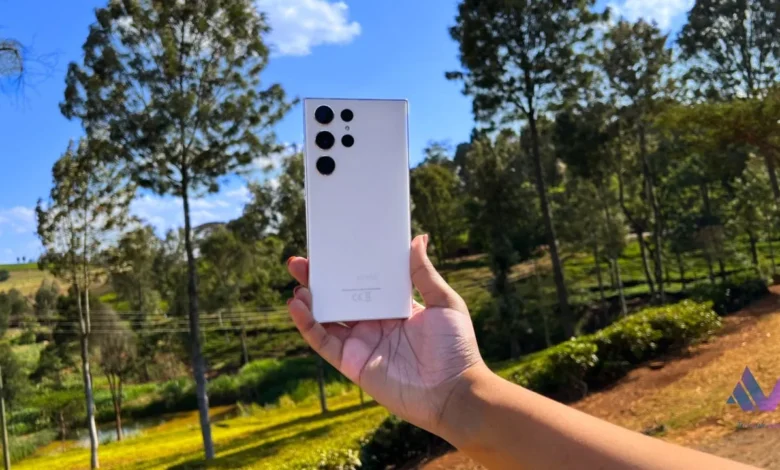
For years, sending a photo from a Samsung phone to a friend’s iPhone meant a detour. You opened WhatsApp and watched it crush the image quality. You uploaded to Google Drive and shared a link. You emailed it to yourself. None of it was clean, and none of it was instant.
That changes with One UI 8.5. Samsung’s Quick Share now talks directly to Apple’s AirDrop. If you own a supported Galaxy phone running the update, you can send and receive files with iPhones, iPads, and Macs without an internet connection, a cloud account, or any extra app on the Apple side.
We recently tracked every Galaxy device that has received the stable One UI 8.5 update, and we explained which phones first got AirDrop support back in April. What we had not done yet is walk you through the part you actually came here for. So here it is.
First, make sure your phone qualifies
This feature is tied to the One UI 8.5 update. If your Galaxy phone has not received it, the option will not exist. To check, open Settings > Software update > Download and install.

Supported devices so far include the Galaxy S25, S24, and S23 series, the Galaxy Z Fold 7, Flip 7, Fold 6, Flip 6, Fold 5, and Flip 5, plus the Galaxy A56 and A36 in select markets. The Galaxy S26 series had it first. If your model is missing, the rollout is still expanding, so it may simply not have reached your region or unit yet.
Two background updates also matter. Make sure Quick Share is updated through the Galaxy Store, and that your Google Play system update is current. The cross-platform handshake relies on both. If the Apple sharing toggle is missing even after you have One UI 8.5, an outdated Quick Share app is usually the reason.
How to send a file from your Galaxy phone to an iPhone
This is the most common question, so we will start here. You need to touch settings on both phones once.
On your Galaxy phone:
- Go to Settings > Connected devices > Quick Share.
- Turn on the Share with Apple devices toggle.
On the iPhone (your friend’s phone):
- Open Settings > General > AirDrop and tap Everyone for 10 Minutes.
That last step is the one people miss. AirDrop has three visibility modes: Receiving Off, Contacts Only, and Everyone for 10 Minutes. The cross-platform feature only works in the Everyone for 10 Minutes mode for now. Apple’s “Contacts Only” mode does not yet recognise Android devices.
Now send:
- On your Galaxy phone, open the photo or file you want to share and tap Share, then tap Quick Share.
- The iPhone’s name appears in the list of nearby devices. Tap it.
- On the iPhone, an AirDrop pop-up appears at the top of the screen. Tap Accept, and the transfer begins.
Keep the iPhone screen awake during this. If it sleeps, it may drop off the Quick Share list.
How to receive a file from an iPhone on your Galaxy phone
It works in reverse too. Here the iPhone owner sends, and you receive.
On your Galaxy phone:
- Go to Settings > Connected devices > Quick Share.
- Tap Who can share with you and choose Everyone (10 minutes only).
- Keep your screen on.
On the iPhone:
- Open the file, tap Share, then tap AirDrop.
- Your Galaxy phone appears in the list. The iPhone owner taps it.
Back on your Galaxy phone:
- A request pops up. Tap Accept to start the transfer.
What is actually happening here
This is worth understanding, because it explains both why it works and where the limits are.
There is no official deal between Samsung and Apple. As we explained when Google first launched this on the Pixel 10 last year, Google reverse-engineered Apple’s AirDrop protocol. In plain terms, Google studied how AirDrop speaks and taught Quick Share to speak the same language. To the iPhone, your Galaxy phone simply looks like another Apple device offering a file.
The transfer is peer-to-peer. Your photo travels directly between the two phones over a local connection, not through Google’s or Apple’s servers. That is why it works offline and why it is fast.
The 10-minute window is a deliberate safety design. Because “Everyone” mode briefly makes a device visible to anyone nearby, both Apple and Google time-box it. Always check that the device name on screen is the one you expect before you accept, especially in a public place like a café or a matatu stage. When you are done, let the window expire or switch the setting off.
Why this matters in Kenya
In Kenyan offices, families, and friend groups, iPhones and Android phones sit side by side. The old friction of moving a single photo across that divide was small but constant. This removes it entirely, with no data bundles burned and nothing for the iPhone owner to install.
One honest caveat. Local update timing is unpredictable. A Galaxy phone bought from Samsung Kenya, one from a local retailer, and one imported from the UAE can all receive One UI 8.5 on different days. So if the toggle is not on your phone yet, you are not doing anything wrong. Check for the update, keep Quick Share current, and try again in a few days.


Join the discussion