
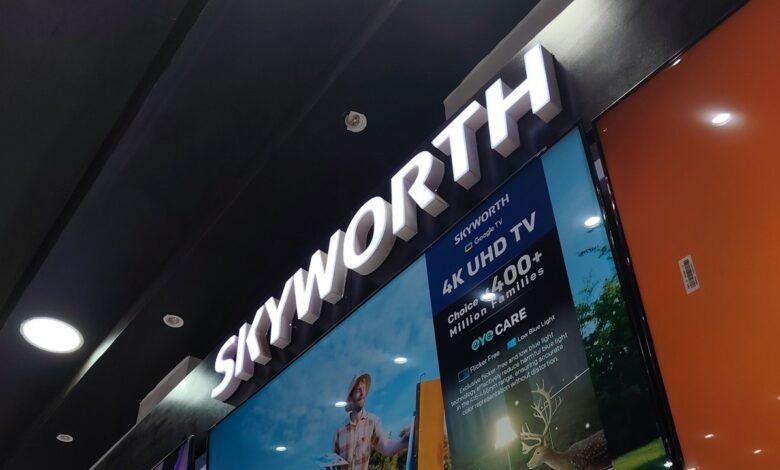
Earlier this week, we published an article detailing a highly frustrating glitch where the DStv Stream app suddenly disappeared or became “unsupported” for multiple Android TV users, with Skyworth models taking the biggest hit.
The Skyworth South Africa team was actively hunting down affected device profiles and engaging with users to fix the issue. Since I couldn’t find a direct line to the Skyworth team here in Kenya, I reached out to the proactive South African support team on email to get to the bottom of this.
I asked them the hard questions: What exactly is causing this—is it a Skyworth, Google, or DStv issue? How can users prevent it from happening again? What happens if the fix is too technical for an average user? And most importantly, if a technician is needed, who foots the bill for a problem the user didn’t cause?
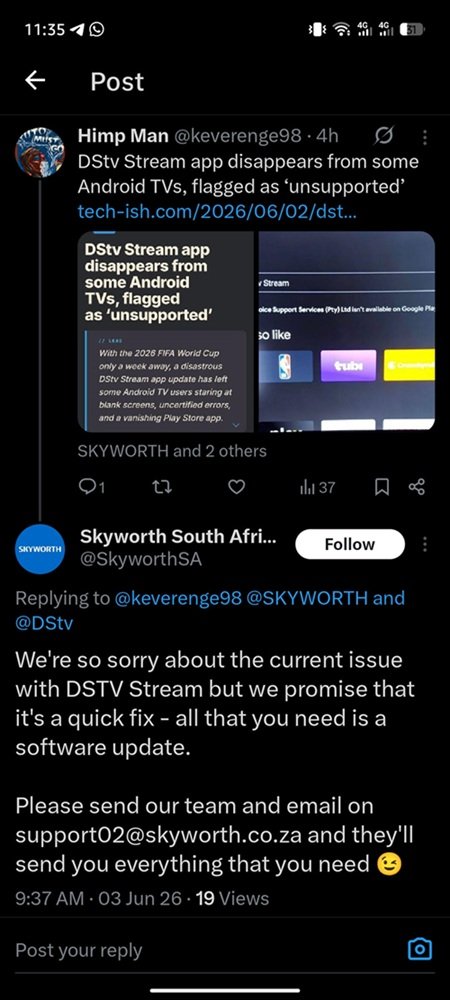
The deafening silence from Skyworth Kenya
Vincent Lottering, a Technical Support and Workshop Supervisor from the SA team, quickly looped in his boss, Mr. Qiu, believing he was better positioned to answer my questions accurately. Mr. Qiu promptly responded to the email thread, stating:

“Sorry Guys, due to regional restrictions, Your question needs to be transferred to the relevant department in Kenya for handling, I have emailed Mr Li, he will assist you in handling your problems.”
He then politely asked a “Mr. Li” to support me. Since that email? Absolute crickets. By the time of publishing this, I have heard absolutely nothing from Mr. Li. Our Kenyan team remains entirely silent, perhaps completely ignorant or willfully unaware that a widespread issue is actively frustrating their customers.
Thankfully, the friend of the site who initially tipped us off about the DStv Stream nightmare on Skyworth TV finally received a working solution. And guess who provided it? The South African team.
A fix for DStv Stream glitch on Skyworth TV… but with a catch
I originally reached out to the support teams to find out if there was a simpler, more user-friendly fix. The solution provided below, while effective, is incredibly clunky.
First, it requires formatting a USB drive to FAT32 so the TV can read the file, a technical step not every TV owner knows how to execute. Secondly, it requires unplugging the TV directly from the wall socket before inserting the drive.
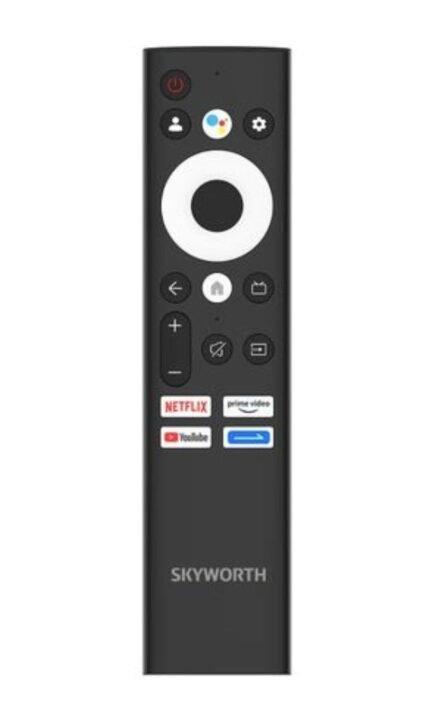
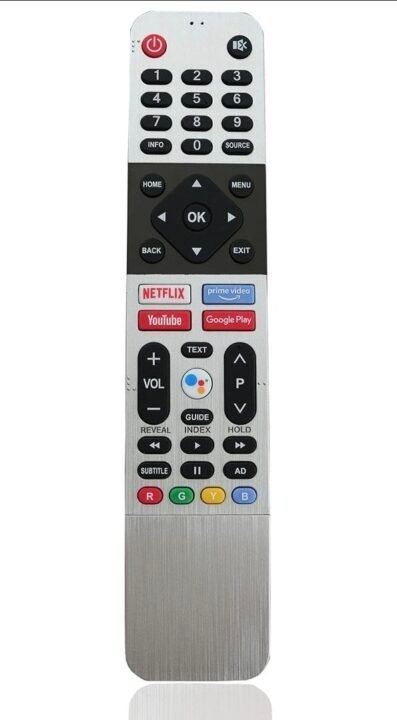
The biggest hurdle, however, is step number four: pressing “Source” followed by “3195” on the remote. If you own a modern Skyworth Android TV, you already know your sleek remote doesn’t have a numeric keypad! It only features the basic Android buttons (Recent, Home, and Back). Expecting a regular consumer to figure out how to input a 4-digit code without a number pad is a massive oversight.
If a user gets stuck and has to call in a technician for this complicated workaround, who pays for it? The problem is clearly on the manufacturer’s side. Regardless, my goal is to arm you with the tools to solve this. This exact fix resolved our friend’s issue, and their DStv Stream is finally back in business.
How to fix the DStv Stream app on Skyworth TVs
According to the official support document shared by Skyworth South Africa, this fix applies specifically to SKYWORTH 50, 55, 65, 75 SUC9300 and SINOTEC STL-505558U20AT models.
Note: You will need a computer, a USB flash drive, and possibly a USB keyboard or an older universal remote with a number pad to pull this off.
Phase 1: Preparing the USB drive
- Download the required files directly from this official WeTransfer link provided by support: https://we.tl/t-NKJGtgZdD3aomcNB.
- Ensure that your USB flash drive is formatted to FAT32.
- Copy the downloaded folder named
"9602_9K5xT_DSTV-20260506"to your USB device. - Unzip the files inside the folder so that you have a
Factory.apkfile and anAttefolder available on the drive.
Phase 2: Installing the factory update
- Switch off the TV by completely removing the power cable or turning it off at the wall socket.
- Insert your USB drive into the TV’s USB port.
- Switch the TV power back on.
- On your remote, press the Source button followed by the numbers 3195. (As mentioned, you may need a USB keyboard plugged into your TV to type the numbers).
- Navigate to Others, then select InstallApps, and locate the USB drive.
- Select the
Factory.apkfile and press OK. - If successful, the system will automatically exit the factory menu.
Phase 3: Updating attestation keys
- Press the Source button followed by 3195 again.
- Navigate to Update Datas >> and scroll down to find Update Attestation Keys.
- Press OK.
- Upon success, a version number (
V2026-05-06) will be displayed in the upper left corner of the factory menu. - Switch off the TV again, remove the USB device, and switch the TV back on.
Phase 4: Clearing data and reinstalling
- Press the HOME button and navigate to Settings, then Apps.
- Find the Google Play Store, select Uninstall updates, and then choose Clear data.
- Next, find Google Play Services, select Uninstall updates, then Clear data, press OK, and navigate to Clear all data.
- Go back to the HOME screen.
- Navigate to your account profile and press it.
- This will display a “Setting up your TV” prompt (You may need to do this step twice).
- Finally, open the Google Play Store, search for the DStv Stream app, and click Install.
Important Note: If you do not succeed on the first try, the support team advises turning off the power and repeating the operation from the beginning.
If you manage to get through these hoops and successfully resurrect your DStv Stream app, let us know in the comments below.
Thanks for the tip, Matubia!






hi can someone please assist me with this ? Skyworth model: 50SUC9300.
Thank you worked like a charm. For those who are battling with the Attestation Keys step, what worked for me (initially had the same issue) was to format the USB again making sure it is FAT32, copied the zip file back onto the USB. Then unzipped the file on the USB drive so that just the Factory.apk file and ATTE Directory was showing in the root directory of the USB (delete the initial.zip file). Ran through the steps again and worked.
Thank you, it worked just as you said… I think the trick is to make sure the Factory.apk and the Atte folder are the only two on the USB Flash and they are in the root. I was failing with the Attestation Key step too but it worked after following your steps.
Hi there,
Attestation Keys fails. Please, any idea how to pass this step?
Installation of APK is success.
Thank you
Phases 1 and 2 are successful, but on 3, the Update Attestation Keys fails. Please, any idea how to pass this step?
Hello there, is your TV among the listed models that support the hack? I was able to fix mine successfully and would like to assist
How do I check if my TV is among the models listed?