
When Safaricom first introduced the M-PESA GlobalPay Virtual Visa Card, it was an instant game-changer for Kenyans looking to shop on international platforms. However, one of the most glaring omissions was its inability to work with Fuliza. If you were a few shillings short in your standard M-PESA wallet, your transaction would simply bounce.
Well, it seems Safaricom has been listening, and they’ve quietly flipped the switch.
While doing my usual rounds in the new My OneApp to pay for an online service, I stumbled upon a feature that completely flew under the radar. Tucked away under the Global Payments section is a new toggle that allows you to link your GlobalPay Virtual Visa Card directly to your Fuliza limit.
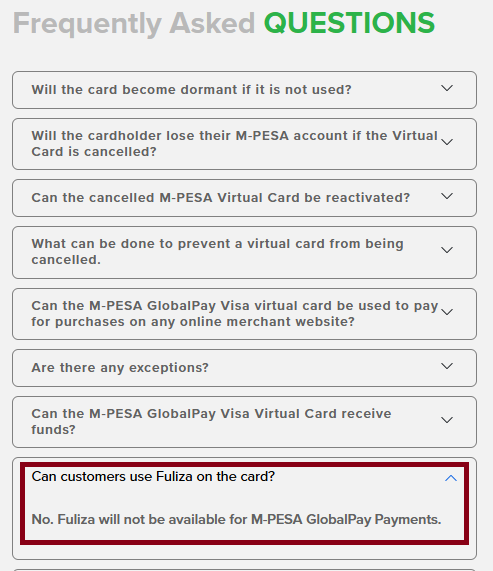
Despite current official documentation and FAQs still stating that the M-PESA virtual card does not support Fuliza, my hands-on experience confirms that this limitation is officially a thing of the past. You can now effortlessly bridge the gap in your wallet balance using your Fuliza overdraft limit to complete online purchases.

Because Safaricom hasn’t officially announced this yet, you might be wondering how to get it working. Here is a quick, step-by-step guide on how I found and enabled the feature, and how you can easily disable it if you change your mind.
How to enable Fuliza for M-PESA GlobalPay Visa Card
The feature is disabled by default. However, activating it is straightforward, but it requires you to navigate through the My OneApp. Here is what you need to do:
- Launch My OneApp and authenticate.
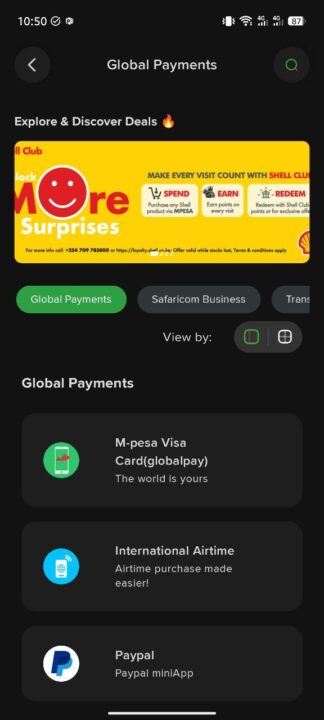
- On the app’s services section, locate and tap on “Global Payments.”
- Tap on the “M-PESA Visa Card (GlobalPay)” option to view your virtual card details and settings.
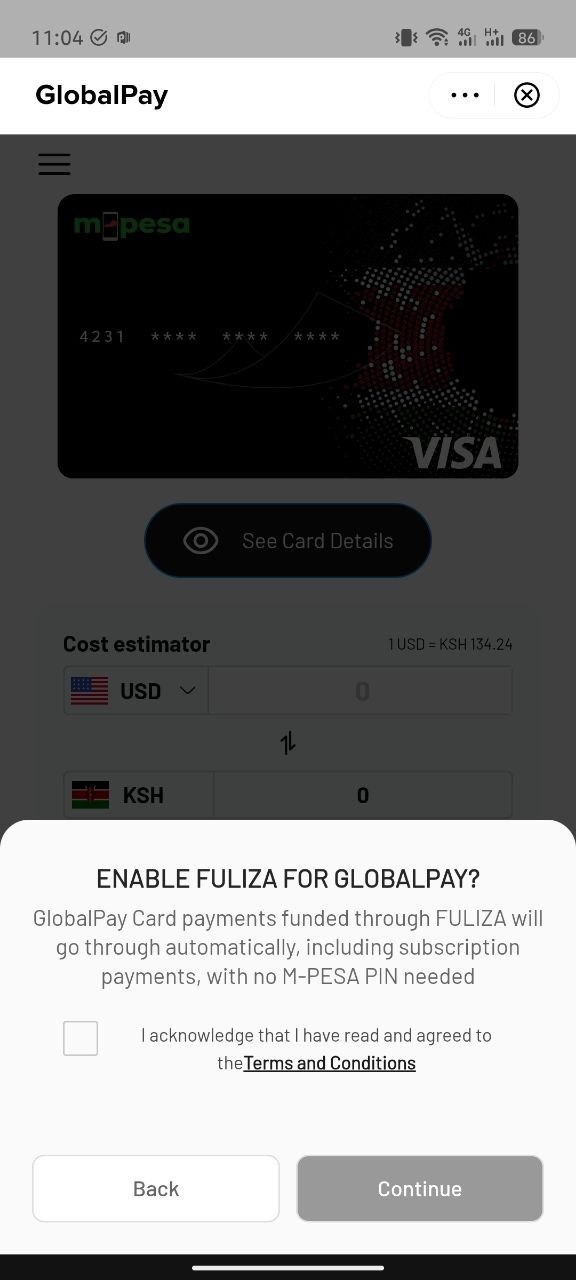
- Scroll down just below the currency cost estimator. Right beneath the “Suspend card” option, you will now see a new feature labeled “Enable FULIZA for Globalpay.”
- Tap the toggle to turn it on.
- Accept the terms by checking the box to acknowledge that you have read and agreed to the Terms and Conditions, then tap “Continue.”
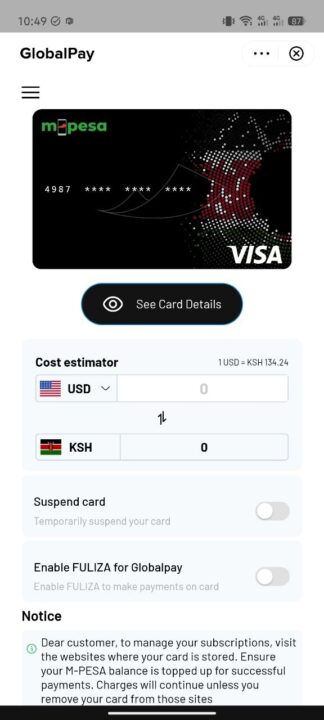
And just like that, your setup is complete. Your virtual Visa card will now automatically pull from your Fuliza limit whenever your primary M-PESA balance falls short during a transaction.
A word of caution on subscriptions
While this is an incredibly convenient update, it comes with a major caveat that you need to manage carefully. As the setup prompt clearly warns, enabling this feature means that automated payments like your monthly Netflix, Spotify, or software subscriptions will pull from Fuliza automatically without asking for your M-PESA PIN. If you aren’t actively tracking your active card subscriptions, you could end up racking up Fuliza debt (and the accompanying daily interest fees) for services you forgot to cancel.
How to disable the feature
If you prefer to keep a tight leash on your overdraft and want to revert to the old way of doing things, disabling the feature takes just two seconds:
- Go back to the GlobalPay dashboard via the Global Payments menu.
- Scroll down to “Enable FULIZA for Globalpay.”
- Simply tap the toggle to switch it off.
It’s always exciting to see user feedback quietly shape the products we use every day. By bridging the gap between GlobalPay and Fuliza, Safaricom just made the M-PESA Virtual VISA card significantly more reliable for everyday digital consumers.







Join the discussion